1. General
To support the CyberFundamentals Framework, an MS Excel® self‑assessment tool has been developed. This tool incorporates the requirements for the ‘Basic’, ‘Important’, and ‘Essential’ assurance levels of the specific framework version it aligns with, as well as the requirements defined in the Conformity Assessment Scheme (CAS). The versions of the framework and the CAS used are clearly indicated within the tool. For this reason, the tool must not be modified during any verification or certification process.
2. Tool layout
In CyFun 2025, the structure has been improved for flexibility and ease of use:
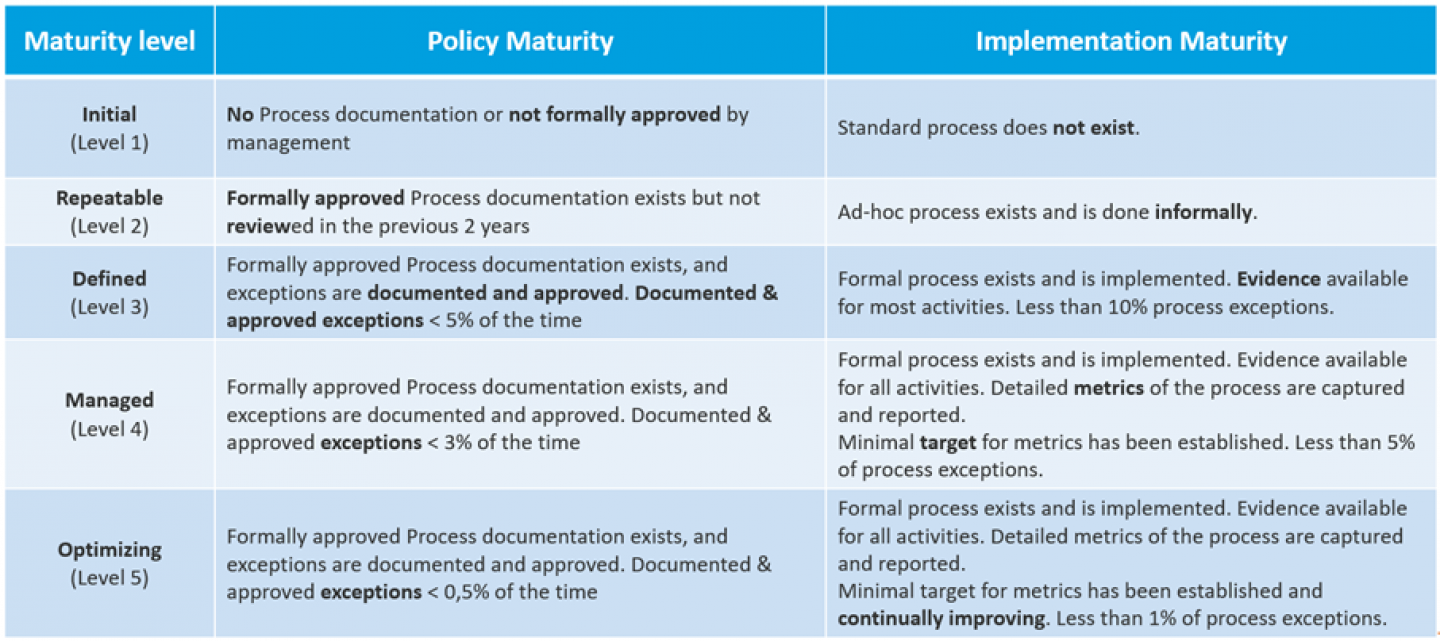
A sub‑category can include several controls, and each of these controls must be assessed for both documentation and implementation using the maturity levels shown above. For each control a score from 1 to 5 must be entered. The tool then calculates the average documentation score and the average implementation score for each sub‑category (for example, ID.AM‑01), and uses these to calculate another average for each category (for example, ID.AM).
4. Summary report
The ‘summary’ tab for each CyberFundamentals assurance level contains the following elements:
- Total Maturity Level: An overall maturity score calculated as the average of the maturity levels of all categories.
- Category Maturity Overview: A summary showing the maturity levels for each category, based on the average values calculated in the dedicated function tab.
- List of Key Measures: An overview of the key measures that must be met, using the values entered in the dedicated function tab.
- Radar Chart (Spider Chart): A visual representation of the category maturity scores, based on the data shown in the summary.
Determining conformity with the Conformity Assessmentv Scheme (CAS) tresholds
- The overview includes the target scores (tresholds) defined for each assurance level in the Conformity Assessment Scheme (CAS). The results of the self‑assessment are compared against these target scores.
- When a value appears in red, it indicates that the required maturity level has not been reached.
- When a value appears in green, it indicates that the required maturity level has been met.